


Retake AI: Face & Photo Editor
3.82.46K Reviews
App Specs
- Version
- 4.1.3
- Updated On
- License
- Free
- Downloads
- 10,000,000+
- Developer
- Deep Flow Apps
- Categories
- Photography
- Platform
- Android, iOS
Screenshots
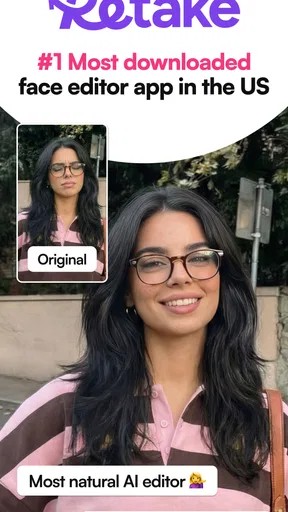
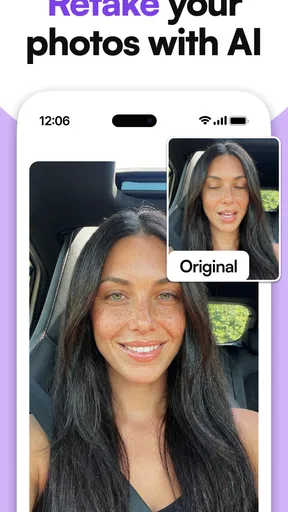

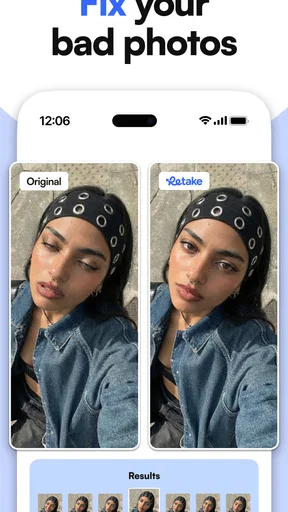
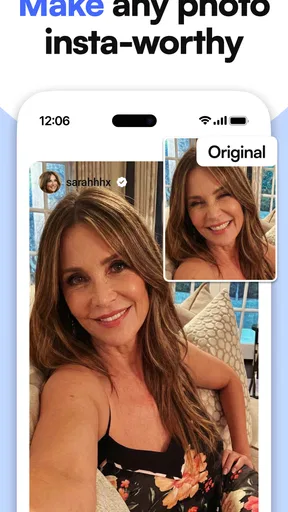
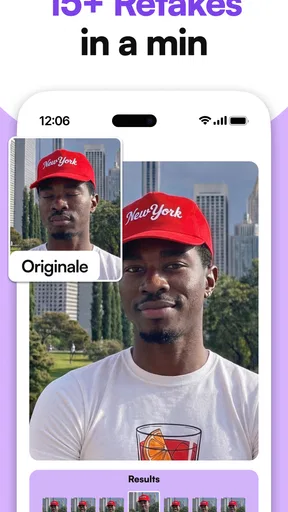
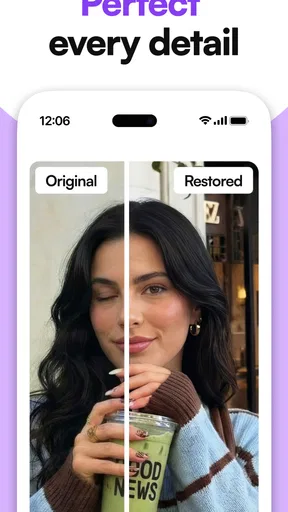
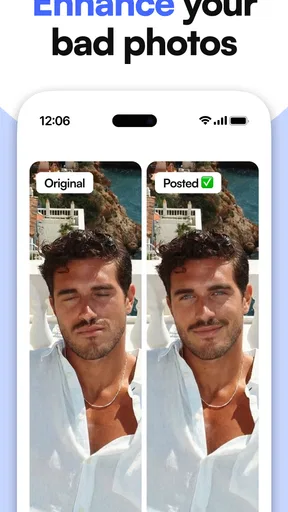
 Analysis by AppCompare
I tend to judge a face editor less by how many buttons it has and more by whether it helps me finish a photo without turning a quick fix into a project. That is the appeal of Retake AI: Face & Photo Editor: it focuses on portraits and selfies, with tools meant to make small changes feel accessible. I’d consider it when I want a photo to look a little more polished, but I wouldn’t treat it as a replacement for a full editing suite or a reason to reshape every image.
How the cost and editing experience fit together
Retake AI is a free photography app from Deep Flow Apps, with optional in-app purchases priced from $1.99 to $59.99 per item. That makes it possible to try the app without paying upfront, but “free to start” is not the same as knowing which tools will remain free for a particular workflow. I’d check the options shown in the app before building a routine around a feature, and decide whether any paid item solves a recurring need rather than buying on impulse.
The app is rated for Everyone, and its current version is 3.0.3. It has an average rating of 3.8 from around 50,000 ratings, with about 2,100 written reviews and over 10 million installs. Those figures suggest that it has reached a broad audience, but they don’t tell me whether a particular retouch will look natural on my own photos. For a face editor, the useful test is still a familiar image, checked at normal viewing size and zoomed in before I save or share it.
Getting Started with Retake AI
First things first, downloading and setting up Retake AI: Face & Photo Editor was a breeze. It’s available for both Android and iOS, so no one's left out in the cold. Once installed, the app greets you with a super clean and intuitive interface. No need for a manual here, folks. It’s like they knew I didn’t want to spend more than five seconds figuring things out.
For a quick everyday job, I’d start with one photo that matters but doesn’t need extensive repair: a selfie for a profile, a group shot where I like my expression, or a portrait taken in decent light. Make one adjustment at a time and look at the whole image between changes. That simple habit helps keep skin texture and facial details from being lost under several effects layered together. It also makes it easier to tell whether the edit genuinely improved the picture or merely made it look more processed.
Features That Make You Go “Wow”
Now, let’s dive into the fun stuff. The app is loaded with features that are both powerful and straightforward. The AI-powered retouching is a game-changer. With just a few taps, you can smooth out skin, brighten eyes, and even swipe away those pesky blemishes. It’s like having a professional photo editor in your pocket.
For me, the best use of those portrait adjustments is selective restraint. A small correction can help when a temporary blemish distracts from an otherwise good photo; a heavy smoothing pass can make a face look flat, especially when the original image already has soft lighting. I’d compare the edited version with the untouched one before settling on it, and keep the edit subtle enough that the person still looks like themselves. That is a more reliable goal than chasing a perfectly uniform complexion.
Worth Reading Before You Choose

Flipboard Shows What News Apps Must Do Beyond the Feed

Switching to Android Auto Means Rethinking Your Driving Routine

Google Calendar Makes a Crowded Week Easier to Manage

Ludo King Makes the Most of the Minutes Between Plans

Baby Panda World Brings Quick Play to Modern Phones, but Its Game Library Feels Busy

ESPN’s Live Game View Makes Following Close Games Easier
It also helps to choose the photo before choosing the effect. A sharp, evenly lit face gives retouching clearer details to work with, while a dim or blurred selfie may leave little room for a convincing result. If the source image is weak, I’d first try another frame from the same moment rather than expecting editing to restore detail that the camera never captured. This is a practical limit of portrait editing, not a reason to abandon a good photo that only needs a modest touch-up.
But the magic doesn’t stop there. The app offers a variety of filters and effects to give your photos that extra pop. Whether you’re going for a vintage vibe or a modern look, there’s something here to suit every style. And the best part? It’s all easy to apply, so you can focus on being creative without getting bogged down in technical details.
Filters are most useful when they support the mood of the shot instead of competing with it. I’d try the same treatment on a few photos from one occasion if I wanted a consistent set, then check faces and backgrounds separately: a filter that looks pleasing on a close-up can shift the feel of a group photo. If I’m preparing pictures for a personal album, I can be more playful; for a work profile or a formal portrait, I’d keep the finish understated.
A Few Handy Tools
One of the features I found particularly handy was the background changer. You know those times when you take a fantastic selfie, but the background just isn’t cutting it? With this app, you can swap out backgrounds as easily as you’d change a shirt. It’s perfect for giving your photos a fresh setting without stepping outside your house.
A background change is also the kind of edit I’d inspect carefully around hair, shoulders, and other fine edges. A replacement can look convincing at a glance yet feel pasted on when the outline is messy or the new scene clashes with the light on the subject. I’d choose a simple, uncluttered setting and avoid presenting an altered background as a documentary record of where a moment happened. For a playful portrait or a profile image, it can be useful; for a keepsake meant to show the actual occasion, preserving the original setting is usually better.
Another tool I loved was the collage maker. You can combine multiple photos into a single frame with creative templates. Great for sharing on social media or just for fun, this feature adds a new dimension to your photo editing game.
A collage is a good answer when several images tell one small story better than a single frame—for example, a few snapshots from a weekend walk or different expressions from the same family gathering. I’d pick photos with similar lighting and a clear subject so the finished layout feels intentional rather than crowded. If the goal is a carefully arranged print or a complex graphic with precise text and spacing, a dedicated layout editor may offer more control; for a quick, casual arrangement, a built-in collage tool is the more convenient route.
Final Thoughts
So, is Retake AI: Face & Photo Editor worth your time? Absolutely. It’s user-friendly, packed with features, and makes photo editing feel like a breeze. Whether you’re a social media aficionado or just like having nice photos in your gallery, this app is a solid choice. Plus, it’s free to start, so why not give it a shot?
In conclusion, if you’re on the hunt for an app that combines ease of use with powerful editing capabilities, look no further. Retake AI: Face & Photo Editor is here to rescue your photos from mediocrity and unleash your inner artist. Trust me, you won’t regret it!
Where it earns its place in a photo routine
The app makes the most sense for someone who edits portraits in short bursts and wants the result without learning a complicated set of controls. I’d reach for it after taking a quick selfie before a video call, when I have a nice expression but notice one temporary distraction, or when I want a casual portrait to feel more finished before sharing it with friends. Those are jobs where a direct retouching workflow can be more convenient than opening a general editor and adjusting many unrelated settings.
For a realistic everyday example, imagine taking a few pictures before meeting friends. One frame has the best expression, but a small blemish catches the eye and the room behind you looks cluttered. I’d use a restrained touch-up, preview the background change at full view, and compare the final result against the original before sending it. If the edge around my hair looks artificial, I’d keep the real background instead. The useful outcome is a photo I’m comfortable sharing, not an edit that makes the scene look more elaborate than it was.
Compared with a phone’s built-in editor, Retake AI is more focused on face-oriented changes and creative portrait treatments. A basic gallery editor is often preferable for cropping, straightening, or making a simple brightness adjustment because those edits preserve a natural look with little effort. Compared with a broad, layered photo-editing app, Retake AI appears aimed at getting through common selfie work without requiring a technical workflow. The trade-off is that people who want fine control over every adjustment, detailed compositing, or a precise design layout may be better served by a more general-purpose tool.
Small decisions that improve the result
One useful workflow is to keep a clean original and treat the edited version as a separate choice rather than assuming the first result is final. That gives me room to revisit the picture if I later decide that a filter is too strong or the background replacement distracts from the face. I’d also avoid making several changes before checking the image: adjusting one element at a time makes it easier to identify which choice helped and which one pushed the photo too far.
For a set of portraits, consistency matters more than making every image individually dramatic. I’d use a similar level of retouching and a restrained visual treatment across the group, then check each photo on its own so that a filter does not overwhelm a darker or more softly lit frame. The collage maker can bring related pictures together, but it cannot make mismatched lighting disappear; selecting compatible source images is a better first step than trying to fix every difference afterward.
There are also times I would skip face editing altogether. If I’m documenting a real event, preparing an image where accuracy matters, or trying to preserve a candid moment, a retouch or swapped setting can change what the photo communicates. And if my main goal is to correct exposure, recover detail, or organize a large photo library, this portrait-centered app is not the tool I’d choose first. Its appeal is strongest when the job is a personal image that benefits from a quick, selective polish.
Who should try it, and who should pass
I’d recommend giving it a try if you regularly take selfies, like experimenting with portrait looks, or want a straightforward way to prepare a photo for a profile or social post. Since there is free access, the sensible approach is to test it with a photo you already know well and see whether its retouching style suits you. If you find yourself returning to the same paid option often, then its listed price becomes a decision about ongoing value rather than a guess based on a first impression.
I’d be more cautious if you dislike AI-style retouching, prefer edits that are nearly invisible, or need exact control over individual parts of an image. The range of in-app purchase prices is broad, so I would not assume that every useful feature is included in the free experience or that a purchase will be worthwhile for occasional edits. Check the specific item and its cost in context, and skip it if the feature only solves a one-off problem you can handle another way.
My overall recommendation is to treat Retake AI as a convenient portrait tool, not an all-purpose photo studio. Its strongest case is a quick, personal edit—light retouching, a creative filter, a changed backdrop, or a simple collage—where ease matters more than deep manual control. I’d start free, keep my edits modest, and spend only if a feature proves useful in my regular routine. If that describes the way you handle photos, it is worth trying; if you need precision or faithful documentation above all, I’d stick with a conventional editor and leave the original scene intact.
Pros
- User-friendly interface for easy navigation.
- Wide range of editing tools available.
- Real-time photo enhancement features.
- Supports high-resolution image exports.
- Regular updates with new features.
Cons
- Some features require a premium subscription.
- Occasional lag on older devices.
- Limited free version capabilities.
- In-app ads can be intrusive.
- Requires internet for full functionality.
FAQs for Retake AI: Face & Photo Editor
What features does Retake AI: Face & Photo Editor offer?
Retake AI: Face & Photo Editor provides a range of features for enhancing photos, including AI-powered retouching, blemish removal, skin smoothing, and more. Users can also adjust lighting, apply filters, and use tools for reshaping facial features. The app aims to deliver professional-quality edits with user-friendly controls.
Is Retake AI: Face & Photo Editor user-friendly for beginners?
Yes, Retake AI is designed to be intuitive, making it accessible for beginners. The interface is straightforward, with easy-to-follow instructions for each feature. Tutorials and tips are available to guide users through the editing process, ensuring that even those new to photo editing can achieve impressive results.
Are there in-app purchases or subscriptions required?
Retake AI offers a free version with basic editing features. However, to access advanced tools and filters, users can opt for a premium subscription. This subscription may include additional features, ad-free usage, and exclusive content updates. It's important to review the pricing and subscription terms before downloading.
How does Retake AI handle user privacy and data?
User privacy is a priority for Retake AI. The app collects minimal data, primarily for enhancing user experience and app functionality. It adheres to strict data protection policies, ensuring that user photos are not stored or shared without consent. Users can review the privacy policy within the app for detailed information.
Can Retake AI: Face & Photo Editor be used offline?
Some features of Retake AI can be used offline, allowing users to edit photos without an internet connection. However, accessing certain AI-driven tools and updates may require online connectivity. It's advisable to check which features are available offline to plan your editing sessions accordingly.


